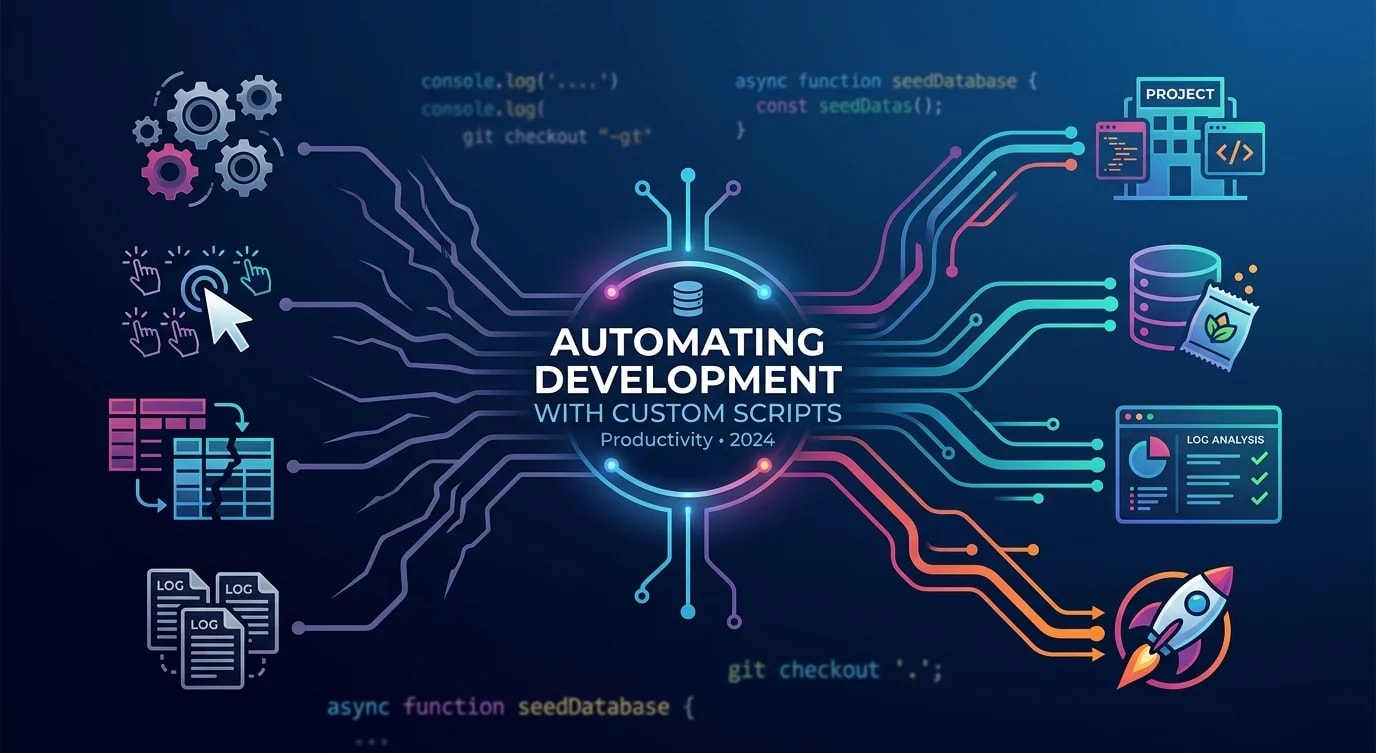
Automating Developer Workflows with Custom CLI Tools
How to spot repetitive development tasks and build custom CLI tools for them — task analysis, script design patterns and the compounding payoff.

The Three-Hour Rule for Automation
If you do something manually more than three times, automate it. If the manual process takes more than five minutes and you do it weekly, the automation will pay for itself within a month. These are not precise thresholds—they are heuristics for overcoming the inertia that keeps developers doing repetitive tasks by hand.
The irony of software engineering is that we build automation for everyone else while manually copying environment variables between terminals, hand-crafting database seed commands, and typing the same Git incantation for the fifteenth time this week.
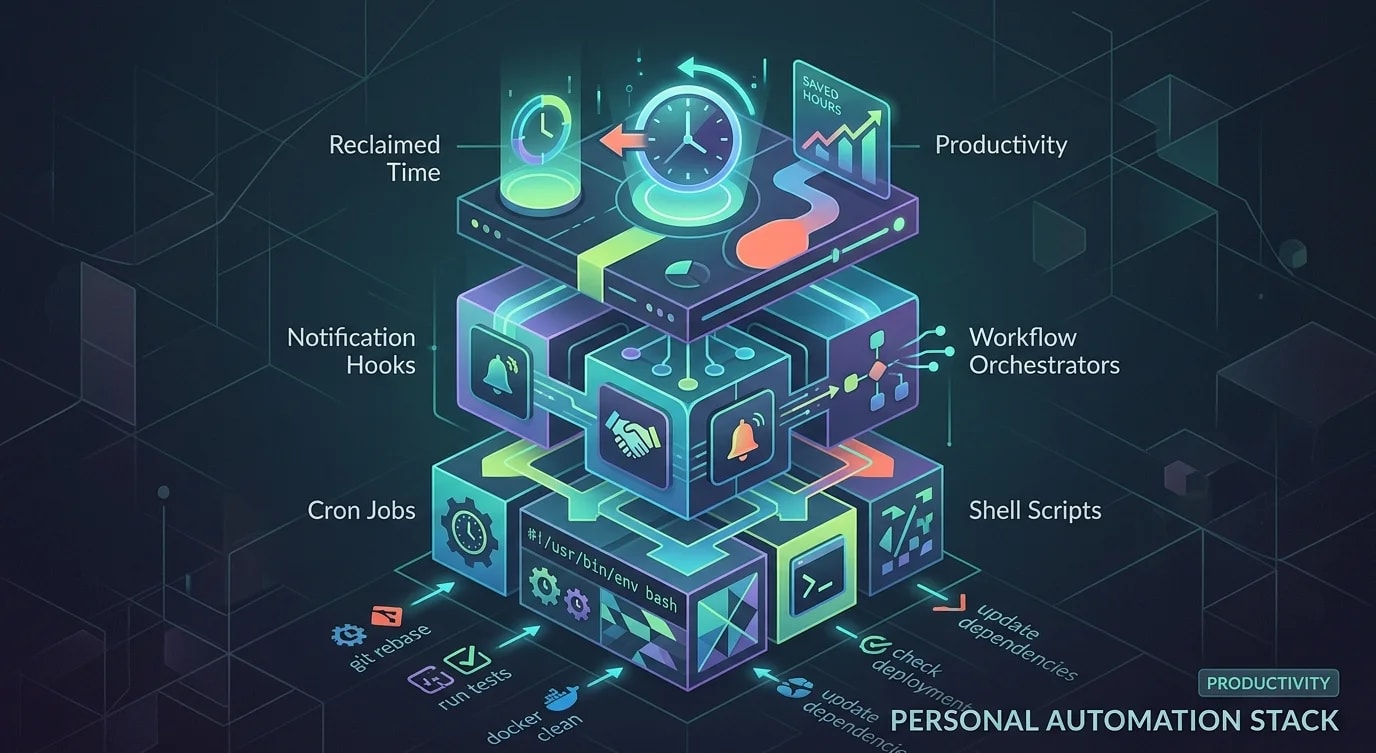
This guide covers how to identify automation opportunities, design CLI tools that stick, and build a personal automation toolkit that compounds over time.
Identifying Automation Candidates
Not every repetitive task is worth automating. The sweet spot is tasks that are frequent, error-prone, and have well-defined steps.
interface AutomationCandidate {
  task: string;
  frequencyPerWeek: number;
  minutesPerExecution: number;
  errorRate: string;
  automationEffort: string;
  weeklyTimeSaved: number;
  paybackWeeks: number;
}

function evaluateCandidates(
  candidates: AutomationCandidate[]
): AutomationCandidate[] {
  return candidates
    .map((c) => {
      const automationHours =
        c.automationEffort === "low"
          ? 1
          : c.automationEffort === "medium"
            ? 4
            : 12;
      const weeklySavedHours =
        (c.frequencyPerWeek * c.minutesPerExecution) / 60;
      const payback = automationHours / weeklySavedHours;

      return {
        ...c,
        weeklyTimeSaved: weeklySavedHours * 60,
        paybackWeeks: Math.ceil(payback),
      };
    })
    .sort((a, b) => a.paybackWeeks - b.paybackWeeks);
}

const candidates: AutomationCandidate[] = [
  {
    task: "Set up new feature branch with ticket reference",
    frequencyPerWeek: 8,
    minutesPerExecution: 3,
    errorRate: "low",
    automationEffort: "low",
    weeklyTimeSaved: 0,
    paybackWeeks: 0,
  },
  {
    task: "Seed local database with test data",
    frequencyPerWeek: 5,
    minutesPerExecution: 8,
    errorRate: "medium",
    automationEffort: "medium",
    weeklyTimeSaved: 0,
    paybackWeeks: 0,
  },
  {
    task: "Generate API client from OpenAPI spec",
    frequencyPerWeek: 2,
    minutesPerExecution: 15,
    errorRate: "high",
    automationEffort: "medium",
    weeklyTimeSaved: 0,
    paybackWeeks: 0,
  },
];
The payback calculation is deliberately simple. Over-analyzing ROI for automation is itself a form of procrastination. If the payback is under four weeks and the task annoys you, build the tool.
Building Your First Automation Script
Start with shell scripts wrapped in a consistent interface. No framework needed—just a file in your project's scripts/ directory with a clear name and help output.
#!/usr/bin/env node
// scripts/new-feature.ts
import { execSync } from "child_process";

const args = process.argv.slice(2);

function printHelp(): void {
  console.log(`
Usage: ./scripts/new-feature.ts <ticket-id> [description]

Creates a new feature branch from latest main with:
- Branch name: feature/<ticket-id>-<description>
- Commits an empty .feature file with ticket metadata

Examples:
  ./scripts/new-feature.ts PROJ-123 add-payment-flow
  ./scripts/new-feature.ts PROJ-456 refactor-auth
`);
}

if (args.length < 1 || args[0] === "--help") {
  printHelp();
  process.exit(args[0] === "--help" ? 0 : 1);
}

const ticketId = args[0];
const description = args[1] || "feature";
const branchName = `feature/${ticketId}-${description}`.toLowerCase();

function run(cmd: string): string {
  return execSync(cmd, { encoding: "utf-8" }).trim();
}

try {
  // Ensure clean working directory
  const status = run("git status --porcelain");
  if (status) {
    console.error("Error: Working directory is not clean. Commit or stash changes first.");
    process.exit(1);
  }

  // Update main and create branch
  console.log("Updating main branch...");
  run("git checkout main");
  run("git pull origin main");

  console.log(`Creating branch: ${branchName}`);
  run(`git checkout -b ${branchName}`);

  console.log(`\nBranch '${branchName}' created and checked out.`);
  console.log(`Ticket: ${ticketId}`);
} catch (error) {
  console.error("Failed:", (error as Error).message);
  process.exit(1);
}
The script validates inputs, checks preconditions, and provides clear error messages. These three qualities determine whether a script gets used once and forgotten or becomes part of the team's daily workflow.
Composable Script Architecture
As your automation toolkit grows, individual scripts should compose into larger workflows. A shared library of utility functions prevents duplication.
// scripts/lib/git.ts
import { execSync } from "child_process";

export function getCurrentBranch(): string {
  return execSync("git branch --show-current", {
    encoding: "utf-8",
  }).trim();
}

export function isClean(): boolean {
  const status = execSync("git status --porcelain", {
    encoding: "utf-8",
  }).trim();
  return status === "";
}

export function getLastTag(): string | null {
  try {
    return execSync("git describe --tags --abbrev=0", {
      encoding: "utf-8",
    }).trim();
  } catch {
    return null;
  }
}

export function getCommitsSince(ref: string): string[] {
  return execSync(`git log ${ref}..HEAD --oneline`, {
    encoding: "utf-8",
  })
    .trim()
    .split("\n")
    .filter(Boolean);
}// scripts/lib/env.ts
import { readFileSync, existsSync } from "fs";
import path from "path";
export function loadEnvFile(envPath: string): Record<string, string> {
if (!existsSync(envPath)) {
throw new Error(`Environment file not found: ${envPath}`);
}
const content = readFileSync(envPath, "utf-8");
const vars: Record<string, string> = {};
for (const line of content.split("\n")) {
const trimmed = line.trim();
if (!trimmed || trimmed.startsWith("#")) continue;
const eqIndex = trimmed.indexOf("=");
if (eqIndex === -1) continue;
const key = trimmed.slice(0, eqIndex).trim();
let value = trimmed.slice(eqIndex + 1).trim();
// Remove surrounding quotes
if (
(value.startsWith('"') && value.endsWith('"')) ||
(value.startsWith("'") && value.endsWith("'"))
) {
value = value.slice(1, -1);
}
vars[key] = value;
}
return vars;
}
export function requireEnvVars(vars: string[]): void {
const missing = vars.filter((v) => !process.env[v]);
if (missing.length > 0) {
throw new Error(
`Missing required environment variables: ${missing.join(", ")}`
);
}
}// scripts/lib/prompt.ts
import readline from "readline";
export async function confirm(message: string): Promise<boolean> {
const rl = readline.createInterface({
input: process.stdin,
output: process.stdout,
});
return new Promise((resolve) => {
rl.question(`${message} (y/N): `, (answer) => {
rl.close();
resolve(answer.toLowerCase() === "y");
});
});
}
export async function select(
message: string,
options: string[]
): Promise<string> {
const rl = readline.createInterface({
input: process.stdin,
output: process.stdout,
});
console.log(message);
options.forEach((opt, i) => console.log(` ${i + 1}. ${opt}`));
return new Promise((resolve) => {
rl.question("Choice: ", (answer) => {
rl.close();
const idx = parseInt(answer, 10) - 1;
resolve(options[idx] || options[0]);
});
});
}These utilities—Git operations, environment management, interactive prompts—form the building blocks for any automation script. Import what you need; ignore what you don't.
Database Seeding Automation
Database seeding is one of the highest-value automation targets. It is done frequently, varies by context, and errors cause cascading development issues.
#!/usr/bin/env node
// scripts/seed.ts
import { confirm, select } from "./lib/prompt";

interface SeedProfile {
  name: string;
  description: string;
  users: number;
  projects: number;
  includeEdgeCases: boolean;
}

const profiles: SeedProfile[] = [
  {
    name: "minimal",
    description: "1 admin, 2 users, 1 project — fast startup",
    users: 3,
    projects: 1,
    includeEdgeCases: false,
  },
  {
    name: "development",
    description: "10 users, 5 projects, realistic data distribution",
    users: 10,
    projects: 5,
    includeEdgeCases: false,
  },
  {
    name: "stress-test",
    description: "1000 users, 50 projects, includes edge cases",
    users: 1000,
    projects: 50,
    includeEdgeCases: true,
  },
];

async function main(): Promise<void> {
  const profileName = await select(
    "Select seed profile:",
    profiles.map((p) => `${p.name} — ${p.description}`)
  );

  const profile = profiles.find((p) =>
    profileName.startsWith(p.name)
  );

  if (!profile) {
    console.error("Invalid profile selected");
    process.exit(1);
  }

  const shouldReset = await confirm(
    "Reset database before seeding?"
  );

  if (shouldReset) {
    console.log("Resetting database...");
    // Reset logic here
  }

  console.log(`Seeding with profile: ${profile.name}`);
  console.log(`  Users: ${profile.users}`);
  console.log(`  Projects: ${profile.projects}`);

  // Seed execution here
  console.log("Seeding complete.");
}

main().catch(console.error);
The Automation Index: Tracking Your Toolkit
Keep a README in your scripts directory that documents what each tool does, when to use it, and who maintains it:
// scripts/README.ts — Generate automation index from script metadata
import { readdirSync, readFileSync } from "fs";
import path from "path";

interface ScriptMeta {
  name: string;
  description: string;
  usage: string;
  author: string;
  lastUpdated: string;
}

function extractMeta(filepath: string): ScriptMeta | null {
  const content = readFileSync(filepath, "utf-8");
  const lines = content.split("\n").slice(0, 20);

  const descLine = lines.find((l) => l.includes("@description"));
  const usageLine = lines.find((l) => l.includes("@usage"));
  const authorLine = lines.find((l) => l.includes("@author"));

  if (!descLine) return null;

  return {
    name: path.basename(filepath),
    description: descLine.replace(/.*@description\s*/, "").trim(),
    usage: usageLine?.replace(/.*@usage\s*/, "").trim() || "See --help",
    author: authorLine?.replace(/.*@author\s*/, "").trim() || "team",
    lastUpdated: "",
  };
}

function generateIndex(scriptsDir: string): string {
  const files = readdirSync(scriptsDir).filter(
    (f) => f.endsWith(".ts") || f.endsWith(".mjs")
  );

  const metas = files
    .map((f) => extractMeta(path.join(scriptsDir, f)))
    .filter(Boolean) as ScriptMeta[];

  let index = "# Developer Scripts\n\n";
  index += "| Script | Description | Usage |\n";
  index += "|--------|-------------|-------|\n";

  for (const meta of metas) {
    index += `| \`${meta.name}\` | ${meta.description} | \`${meta.usage}\` |\n`;
  }

  return index;
}
A discoverable toolkit gets used. An undiscoverable one gets rebuilt from scratch by the next developer who encounters the same problem.
Integrating Scripts with Package.json
{
  "scripts": {
    "new-feature": "tsx scripts/new-feature.ts",
    "seed": "tsx scripts/seed.ts",
    "seed:minimal": "tsx scripts/seed.ts --profile minimal --no-prompt",
    "db:reset": "tsx scripts/db-reset.ts",
    "release": "tsx scripts/release.ts",
    "check:deps": "tsx scripts/check-deps.ts",
    "scripts:index": "tsx scripts/generate-index.ts"
  }
}
Exposing scripts through package.json makes them discoverable via npm run tab completion and documents them alongside the project's standard commands. npm run seed is more likely to be found and used than tsx scripts/seed.ts.
Key Takeaways
Automation is the highest-leverage activity in software engineering. Every minute spent building a reliable script multiplies across every future execution. The compound returns are enormous—a script that saves five minutes daily saves over 20 hours per year, and that is just for one person on the team.
Start small: pick the task that annoys you most, automate it in the simplest way possible, and put it where the team can find it. Build a shared library of utilities for Git operations, environment management, and interactive prompts. Document your scripts in a central index.
The best developer tooling is not the fanciest—it is the most reliable. A script that works every time, handles errors clearly, and takes ten seconds to run will get used daily. A beautiful CLI framework that takes three days to build might not.