Docker Compose for Local Development: A Complete Guide
How to build a productive Docker Compose setup for local development with hot reloading, database persistence, and parity with production.
"But it works on my machine" stopped being acceptable when Docker solved the environment parity problem. Yet many teams still have a 15-step README for local setup, different Node versions across laptops, and a PostgreSQL version in development that does not match production.
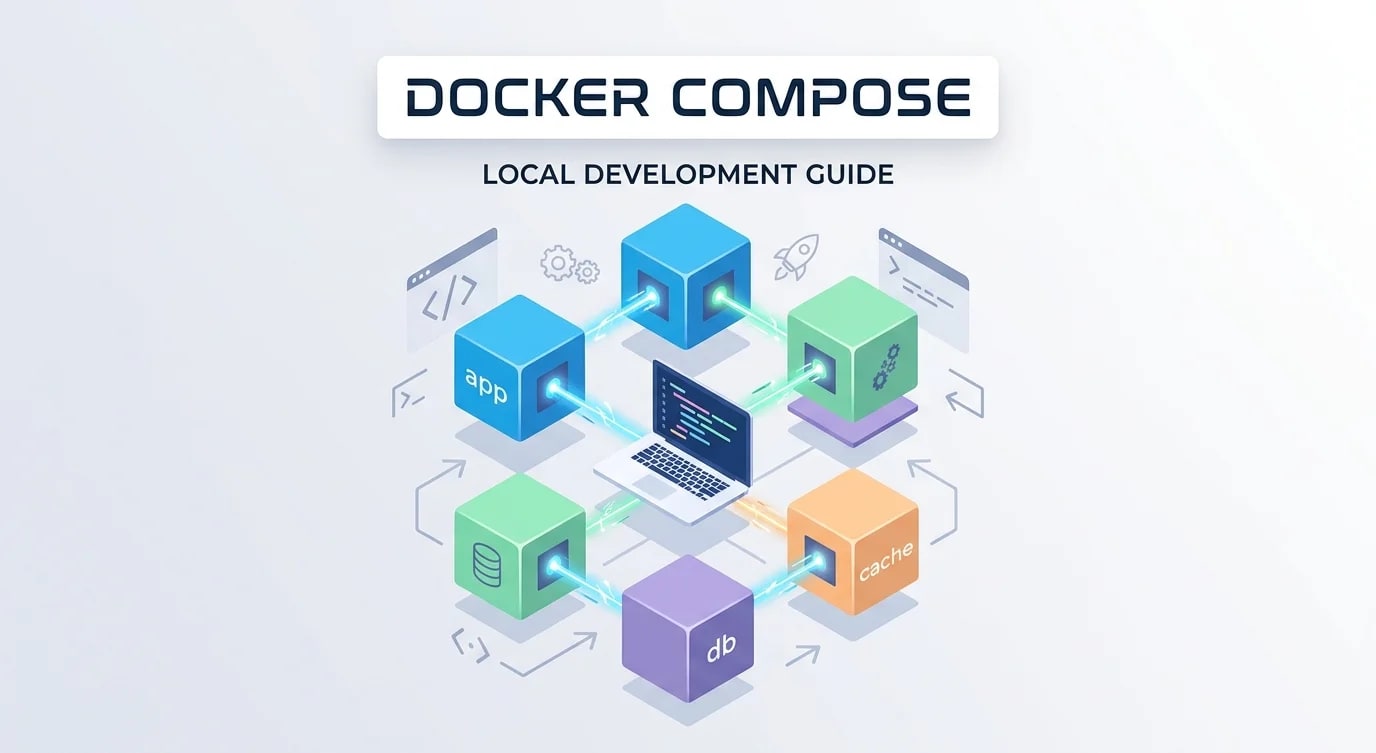
Docker Compose wraps your entire development stack — application, database, cache, queue — into a single docker compose up command. The challenge is doing it without sacrificing developer experience. Nobody will use a setup that takes 2 minutes to rebuild after changing one line of code.
The Base Configuration
Start with a docker-compose.yml that mirrors your production infrastructure. Each service your application depends on gets a container.
# docker-compose.yml
services:
  app:
    build:
      context: .
      dockerfile: Dockerfile.dev
    ports:
      - "3000:3000"
    volumes:
      - .:/app
      - /app/node_modules
    environment:
      - NODE_ENV=development
      - DATABASE_URL=postgresql://devuser:devpass@db:5432/appdb
      - REDIS_URL=redis://cache:6379
    depends_on:
      db:
        condition: service_healthy
      cache:
        condition: service_started

  db:
    image: postgres:16-alpine
    ports:
      - "5432:5432"
    environment:
      POSTGRES_USER: devuser
      POSTGRES_PASSWORD: devpass
      POSTGRES_DB: appdb
    volumes:
      - pgdata:/var/lib/postgresql/data
      - ./scripts/init-db.sql:/docker-entrypoint-initdb.d/init.sql
    healthcheck:
      test: ["CMD-SHELL", "pg_isready -U devuser -d appdb"]
      interval: 5s
      timeout: 5s
      retries: 5

  cache:
    image: redis:7-alpine
    ports:
      - "6379:6379"

volumes:
  pgdata:
Key decisions in this configuration:
- Named volume for PostgreSQL —
pgdatapersists data between restarts. Without it, you lose your database every time you rundocker compose down. - Health checks on dependencies —
depends_onwithcondition: service_healthyprevents the app from starting before the database is ready. - Port mapping — Expose ports for direct database access with tools like pgAdmin or TablePlus.
Development Dockerfile
The development Dockerfile differs from production. It prioritizes rebuild speed and hot reloading over image size and security.
# Dockerfile.dev
FROM node:20-alpine

WORKDIR /app

# Install dependencies first — cached unless package.json changes
COPY package.json package-lock.json ./
RUN npm ci

# Don't copy source files — they're mounted as a volume
# This means changes are reflected immediately

EXPOSE 3000

CMD ["npm", "run", "dev"]# ❌ Anti-pattern — COPY everything, then install
FROM node:20-alpine
WORKDIR /app
COPY . .
RUN npm ci
CMD ["npm", "run", "dev"]
# Every source file change invalidates the npm ci cache
# ✅ Layer ordering — dependencies cached separately
FROM node:20-alpine
WORKDIR /app
COPY package.json package-lock.json ./
RUN npm ci
# Source files come from the volume mount, not COPY
CMD ["npm", "run", "dev"]The volume mount (- .:/app) maps your local source code into the container. The second volume (- /app/node_modules) prevents the local node_modules from overriding the container's — they might have platform-specific binaries.
Hot Reloading Configuration
Hot reloading inside Docker requires the file watcher to detect changes from the volume mount. Some tools need explicit configuration for this.
// next.config.js — Next.js in Docker
module.exports = {
  webpack: (config) => {
    // Enable polling-based file watching for Docker volumes
    config.watchOptions = {
      poll: 1000,
      aggregateTimeout: 300,
    };
    return config;
  },
};
For tools using chokidar (Vite, nodemon, webpack-dev-server):
{
  "scripts": {
    "dev": "CHOKIDAR_USEPOLLING=true next dev"
  }
}
Polling is slightly more CPU-intensive than native file system events, but it is the only reliable option for Docker volume mounts on macOS and Windows.
Environment-Specific Overrides
Use docker-compose.override.yml for developer-specific settings that should not be committed. Docker Compose automatically merges it with the base file.
# docker-compose.override.yml (gitignored)
services:
  app:
    environment:
      - DEBUG=app:*
      - LOG_LEVEL=debug
    ports:
      - "9229:9229"  # Node.js debugger

  db:
    ports:
      - "5433:5432"  # Custom port to avoid conflicts
For production-like testing, use an explicit override file:
# docker-compose.prod.yml
services:
  app:
    build:
      dockerfile: Dockerfile
    environment:
      - NODE_ENV=production
volumes: [] # No source mount — use built image# Development (default)
docker compose up
# Production-like testing
docker compose -f docker-compose.yml -f docker-compose.prod.yml upDatabase Management
Development databases need seeding, migrations, and occasional resets. Automate these with compose commands.
# docker-compose.yml — add utility services
services:
  migrate:
    build:
      context: .
      dockerfile: Dockerfile.dev
    command: npx prisma migrate deploy
    environment:
      - DATABASE_URL=postgresql://devuser:devpass@db:5432/appdb
    depends_on:
      db:
        condition: service_healthy
    profiles:
      - tools

  seed:
    build:
      context: .
      dockerfile: Dockerfile.dev
    command: npx prisma db seed
    environment:
      - DATABASE_URL=postgresql://devuser:devpass@db:5432/appdb
    depends_on:
      db:
        condition: service_healthy
    profiles:
- tools# Run migrations
docker compose --profile tools run --rm migrate
# Seed the database
docker compose --profile tools run --rm seed
# Reset everything — database, volumes, containers
docker compose down -v
docker compose up -d
docker compose --profile tools run --rm migrate
docker compose --profile tools run --rm seedThe profiles: [tools] setting means these services do not start with docker compose up. They only run when explicitly invoked — keeping the default startup clean.
Debugging Inside Containers
Attach a debugger to the Node.js process running inside Docker by exposing the debug port and configuring your IDE.
# docker-compose.yml
services:
  app:
    command: node --inspect=0.0.0.0:9229 node_modules/.bin/next dev
    ports:
      - "3000:3000"
- "9229:9229"// .vscode/launch.json
{
"version": "0.2.0",
"configurations": [
{
"name": "Docker: Attach",
"type": "node",
"request": "attach",
"port": 9229,
"remoteRoot": "/app",
"localRoot": "${workspaceFolder}",
"restart": true
}
]
}The --inspect=0.0.0.0:9229 flag binds the debugger to all interfaces inside the container (not just localhost), making it accessible from the host.
Common Pitfalls
# ❌ Hardcoded secrets in docker-compose.yml
services:
  db:
    environment:
      POSTGRES_PASSWORD: my-real-password-123

# ✅ Use .env file (gitignored)
services:
  db:
    environment:
POSTGRES_PASSWORD: ${DB_PASSWORD}# .env (add to .gitignore)
DB_PASSWORD=local-dev-only-passwordOther pitfalls to avoid:
- Missing volume for node_modules — host modules overwrite container modules, causing platform-specific errors
- No health checks on databases — app starts before database is ready, fails on first query
- Using
latesttags —postgres:latesttoday is notpostgres:latesttomorrow. Pin versions.
Key Takeaways
- Mirror production infrastructure — use the same database version, same services, same configuration
- Separate dependency installation from source code — Dockerfile layer ordering keeps rebuilds fast
- Volume mount source code for hot reloading — do not COPY source files in development
- Use health checks on dependencies —
depends_onwithout conditions does not wait for readiness - Use profiles for utility services — migrations and seeds should not start automatically
- Pin image versions —
postgres:16-alpine, notpostgres:latest